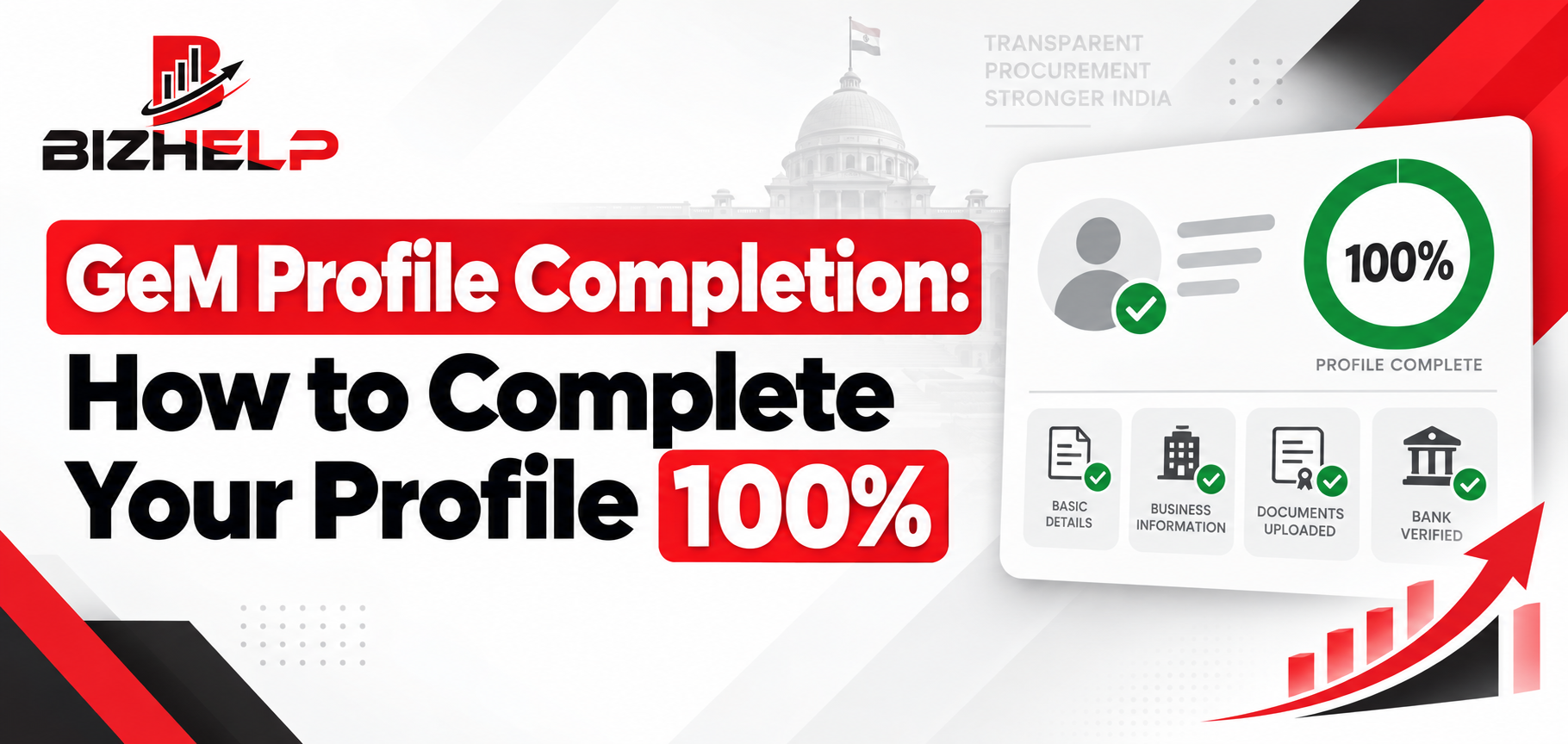
GeM Profile Completion: How to Complete Your Profile 100%
Introduction
After completing GeM seller registration, many sellers still see an incomplete profile on their dashboard. Even after entering the required information, the completion percentage may not increase, verification may remain pending, or it may be unclear which section still needs attention.
Creating a seller account and making the profile transaction-ready are two different stages. Registration opens the account. Profile completion is what makes it usable — until the mandatory sections are filled and validated, catalog work, vendor assessment and bid participation all sit behind it.
This guide covers the GeM profile completion process end to end: what profile completion actually means and how it differs from registration, the ten sections to work through in order, a section-wise checklist, the reasons a percentage refuses to move, the documents to keep ready, and the mistakes that keep accounts stuck at 80 or 90 percent.
Short Forms Used in This Guide
| Short form | Full form |
|---|---|
| GeM | Government e-Marketplace |
| PAN | Permanent Account Number |
| GST | Goods and Services Tax |
| MSME | Micro, Small and Medium Enterprises |
| MSE | Micro and Small Enterprise |
| IFSC | Indian Financial System Code |
| OTP | One Time Password |
| TAN | Tax Deduction and Collection Account Number |
| TReDS | Trade Receivables Discounting System |
| EMD | Earnest Money Deposit |
| OEM | Original Equipment Manufacturer |
| PIN code | Postal Index Number code |
The process, required information, common errors and practical solutions follow, in simple language.
How Do You Complete a GeM Profile 100%?
Log in to your GeM seller account and review all mandatory sections under Seller Profile. Correctly update your organisation details, business PAN, office address, bank account, applicable tax information, MSME status, and verification details. After saving each section, check the pending fields and validation status again. Portal options may vary depending on the seller type.
What Is GeM Profile Completion?
GeM profile completion means entering the required information in your seller business profile on the Government e-Marketplace (GeM), validating the applicable details, and completing all pending sections.
A seller profile may generally include organisation information, business details, office locations, bank account details, tax-related information, Micro, Small and Medium Enterprises (MSME) details, and other applicable declarations. The exact sections depend on the business structure and the portal's current workflow.
Profile completion should not be confused with registration:
- GeM registration creates the seller account.
- Profile completion updates and validates the account's mandatory business information.
- Catalog management is used to list products or services.
- Vendor Assessment may apply to selected categories and seller conditions.
- Tender participation requires separate checks for bid-specific eligibility and documents.
If a seller account has not yet been created, complete the GeM registration process first.
How to Complete Your GeM Profile 100%
The GeM interface and field names may change over time. Always prioritise the mandatory fields and system instructions currently displayed on your dashboard.
1. Log In to Your GeM Seller Account
Log in to the official GeM portal using your registered user ID and password. After logging in, open the Profile or Business Profile section from the seller dashboard.
If you are unable to log in, first verify your user ID, password, captcha, and registered contact details.
2. Check Your Profile Completion Status
Open every profile section individually. Do not rely only on the overall completion percentage. Identify sections marked as pending, incomplete, validation required, or rejected.
Sometimes, a single blank mandatory field can cause the entire section to appear incomplete.
3. Review Organisation Details
Enter the business type, legal name, date of incorporation, and other organisation details according to official records. The available fields may differ for proprietorships, partnerships, companies, trusts, and societies.
The spelling of the business name should match the Permanent Account Number (PAN), Goods and Services Tax (GST) registration, and bank records.
4. Check Business PAN Validation
Enter the PAN carefully and complete the available validation process. The PAN holder's name and business constitution should not conflict with the information declared on the portal.
An incorrect PAN, wrong business type, or name mismatch can prevent profile completion.
5. Update Contact and Office Details
Review the registered mobile number, email address, and office location. Ensure that the Postal Index Number (PIN) code, district, state, and complete office address are consistent with official documents.
An outdated mobile number or inaccessible email account can cause problems with future verification and account communication.
6. Check Bank Account Details
Carefully verify the account holder's name, account number, Indian Financial System Code (IFSC), and branch details. Typing errors in bank details can lead to payment-related issues.
If the portal requests supporting information for verification, follow the instructions shown on the current screen to upload the required document or complete the validation.
7. Complete Tax and Business Information
GST, tax assessment, e-invoicing, Tax Deduction and Collection Account Number (TAN), or other tax-related sections may apply to a seller. The same tax information is not mandatory for every seller.
Declare all applicable information according to genuine records. If a registration does not apply, select the appropriate option or declaration available on the portal. Do not enter incorrect information.
8. Review MSME and Other Applicable Details
If the business is registered as an MSME under Udyam, update the Udyam details accurately. The enterprise name, organisation type, and other information should match the certificate.
Sections related to beneficial ownership, compliance, logistics, Trade Receivables Discounting System (TReDS), or other matters may also appear on the dashboard. Check the portal's current indicators to identify which fields are mandatory for the profile completion percentage.
9. Complete Pending Verifications
If One Time Password (OTP), email, PAN, bank, tax, or document validation is pending, simply saving the information will not be sufficient. The required verification action must also be completed.
Read the reason for any rejected item, correct the source document, and resubmit the details through the process available on the portal.
10. Save and Recheck Your Profile
After updating each section, complete the action shown in the current interface, such as Save, Submit, Verify, or Confirm. Refreshing the page or logging out and logging back in may help you check the updated status.
If managing multiple business sections is difficult, you may consider professional GeM account management support.
GeM Profile Completion Checklist
| Section | What to Check |
|---|---|
| Business Details | Legal information is accurate |
| Contact Details | Mobile number and email address are up to date |
| Office Details | Address and PIN code are correct |
| Bank Details | Account number and IFSC code are verified |
| Tax Details | Applicable information is updated |
| Documents | Current and readable documents are available |
| Certificates | Applicable certificates are valid |
| Seller Details | All required fields are complete |
| Verification | Pending or rejected items have been reviewed |
Why Is Your GeM Profile Not Reaching 100%?
The completion percentage is not increasing
Open every profile tab and check the mandatory fields. After entering the information, you may still need to complete the final Save, Submit, or validation step.
A section still appears incomplete
There may be a blank field, unchecked declaration, or pending verification within the section. Carefully review red warnings, asterisks, and system messages.
Updated information is not appearing
Refresh the page, log in again, and recheck the profile status. If the changes still do not appear, raise an official GeM support ticket with a screenshot and the relevant details.
A document has been rejected
Identify the reason for rejection. Blurred scans, expired certificates, incorrect document types, and business-name mismatches are common problems. Resubmit the correct and clearly readable document.
Verification is pending
Check the type of pending verification. An OTP, email confirmation, or external validation may require additional action. Follow the message displayed on the portal.
Business information does not match
Compare the legal name, business constitution, and address across the PAN, GST, Udyam, bank account, and organisation profile. Instead of editing details based on guesswork, it may be necessary to correct the original record.
You cannot identify the missing field
Open every profile section systematically. If the portal does not show a clear reason, note the error screenshot, seller ID, and steps already attempted, and then contact GeM support for clarification.
What Documents Are Required to Complete a GeM Profile?
The exact document requirements for a GeM profile are not the same for every seller. They depend on the business structure, seller type, product or service, tax applicability, and verification requirements.
Sellers should keep the applicable records ready, such as:
- PAN and business identity information
- Registered office or business address details
- Bank account information
- Applicable GST details
- Udyam certificate, if registered as an MSME
- Business constitution-related records
- Applicable tax or compliance information
- Category, OEM, or Vendor Assessment-related documents, where required
Do not treat profile completion documents and tender documents as the same. Depending on the buyer's bid conditions, turnover, experience, Earnest Money Deposit (EMD), authorisation letters, certificates, and other documents may be required separately.
Why Is GeM Profile Completion Important?
A complete and accurate GeM seller profile helps keep the account better prepared for further activities. It can:
- Keep seller information organised and current.
- Reduce avoidable issues caused by incorrect business details.
- Ensure that bank and tax information is properly maintained.
- Make it easier to begin catalog-related activities.
- Improve account management and verification tracking.
- Better prepare the seller to evaluate tender opportunities.
After completing the profile, the GeM catalog management process must be completed separately to list products or services. A 100% complete profile does not guarantee orders or tender awards.
Seven Common GeM Profile Completion Mistakes
- Entering a business name that differs from official records.
- Leaving mismatches between PAN, GST, Udyam, and bank details.
- Leaving applicable mandatory fields blank.
- Uploading blurred, expired, or incorrect documents.
- Assuming that saved information means the validation is complete.
- Failing to recheck the submission status after an update.
- Assuming the account is fully ready immediately after registration.
Frequently Asked Questions About GeM Profile Completion
Q1. How do I complete my GeM profile?
A1. Log in to your seller account and open all mandatory sections under Business Profile. Complete the organisation, PAN, office, bank, applicable tax, MSME, and verification details, and save the changes. Finally, recheck all pending statuses.
Q2. Why is my GeM profile incomplete?
A2. A mandatory field may be blank, verification may be pending, a document may have been rejected, or business information may not match. Review every profile section individually and identify the warning message.
Q3. How can I check GeM profile completion?
A3. Open the Profile section on the seller dashboard to view the completion status. Along with the overall percentage, review whether each section is marked as pending, validated, or incomplete.
Q4. Why is my profile completion percentage not increasing?
A4. The information may not have been saved, validation may be incomplete, or a mandatory declaration may still be pending. Reopen the section and check the final submission status.
Q5. What documents are required for a GeM profile?
A5. Requirements vary according to the seller type and business structure. PAN, bank, address, GST, Udyam, and business constitution-related information may be applicable. Follow the current instructions displayed on the portal.
Q6. Can I update my GeM profile later?
A6. Many profile details can be updated, subject to portal rules and verification. Supporting records may be required to change legal or previously validated information.
Q7. What should I do if verification is pending?
A7. Check the type of pending verification and complete the required OTP, email confirmation, validation, or resubmission. If the status remains unresolved, raise an official support ticket.
Q8. Is 100% profile completion necessary?
A8. Completing all mandatory profile sections is important for account readiness. However, catalog creation, Vendor Assessment, and bid eligibility may have separate requirements.
Conclusion
GeM profile completion is not merely about reaching a 100% completion score. Sellers should accurately update their organisation, PAN, bank, tax, MSME, and verification details according to official records. If the profile remains incomplete, review the mandatory fields, document status, and pending verifications in every section.
A complete and accurate GeM seller profile helps a seller prepare for catalog creation, account management, and tender participation. However, 100% profile completion does not guarantee orders or tender success. If you cannot identify an error or a verification remains pending, raise an official GeM support ticket or seek assistance from professional GeM consultancy services.
Related Blogs & Insights